Posts

Showing posts with the label Forms

Blazor Weather Forecast CRUD
Image
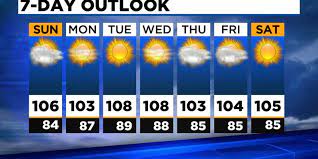
  On my way to set up SQLite within Blazor, I ran into a few more hurdles than I was expecting. So, I decided to write about it. I have used SQLite with C# in the past and it was quite straightforward. But since then, there must have been a couple of updates that did not work quite like they expected. Once I got SQLite working, I decided it would be fun to create a new Weather Forecast CRUD application to highlight using SQLite with Blazor. That part turned out to be fun. Application Goal The goal was simple, using the Weather Forecast, Fetch data, part of the standard Blazor template, read the records from an SQLite database, and add the functionality of adding, editing, and deleting forecast records. Additionally, I wanted to use TailwindCss for styling. I am incredibly pleased with the result of the application. Connecting to SQLite Connection to SQLite has simple steps:      1. Add NuGet Microsoft.EntityFramework.Core.SQLite      2. Add NuGe...
Sign In best practices, Blazor Style

Image
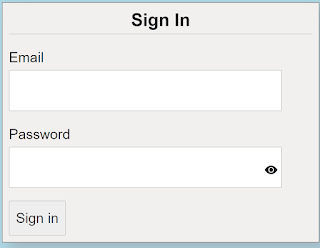
  When you think about it, application sign-in forms would seem fairly straight forward and simple to do, considering that most applications have them.  Make a form, add a couple of labels and inputs with a button and you are good to go. When you stop and think about it though, there is a lot that goes into making a good sign in form.  We are going to take a look at 5 best practices you can use when creating your next sign-in form.  The key concept to keep in mind is to make it simple.  You have to always consider that your users are not as computer savvy as you are.   The sample project that focuses on the sign-in form HTML and Blaozr code.  There is no real authentication for the application.  Any email and password, that meets the validation, will allow the user to get to the home section of the application.  Please note this code will work on either server-side Blaozr of web assembly Blazor We will look at each of the 5 best practice...

Convert Bootstrap Template to Blazor (Part 5)

This is part 4 in my 7-part series on how to move a free Bootstrap Template and make a Blazor application out of it.  You can read about the other post here: 1.        Part 1 – Create project and Copy over assets 2.        Part 2 - Navigation 3.        Part 3 – Header and Footer 4.        Part 4 – About and Copyright With building this component there are a couple of new concepts that we get to deal with.  We can break down what we need to do into these steps: Create a contact data model with data annotations  Convert the current form into to a Blazor form component  Add the Submit button handler  Create a service to handle the submit  Data Model  The fields we need are listed above, we just need to determine the validation rules.  Here is what we decided:  Name  Required   Max length of 100  Phone Number ...

Blazor Form Validation

Creating an input forms is needed for just about every application.   Creating a form in Blazor is fairly strength forward using the Blazor components and the ASP.Net Core Data Annotations on your model.   The cool part is that the data annotations on your model is the same both in the client and on the server.   Another benefit of Blazor. For this post we will be modifying the standard Weather forecast sample that ships as one of the pages in the project templates.   We will be changing it cities with their temperatures.   I will be using this project for the next couple of blog post, I will just be adding new features to it. Getting Started To get started building input forms, we will create a model and add our data annotations to it.    We have several simple fields and data annotations that deal with required and max length.   These should be common.       public class CityWeatherInfo   ...